
This article is based on a specific business need, which is to show both golden and source error children of an entity.
The principle and main steps of this article can be used for other needs close to this one.
Need
As of the current state of xDM, it is not possible to show in a business view children of different granularity. As the source error record did not pass the certification process, no link exists between them and an eventual parent, even though a foreign key can be present in the children records.
Summarized Solution
To display both golden and error children, the only existing solution is to create a dashboard.
Detailed Solution
1. Create a dashboard application and set up its sources. The details on how to do so are explained in the documentation.
2. Create 2 queries:
--> one for the golden records
--> one for the error records.
3. For each query, a query action is needed, which will open a form through a business view. If you want to use the same form for both, be sure it is compatible for both golden and error records.
The business views have to be configured at the data level intended to be displayed (golden / source error).
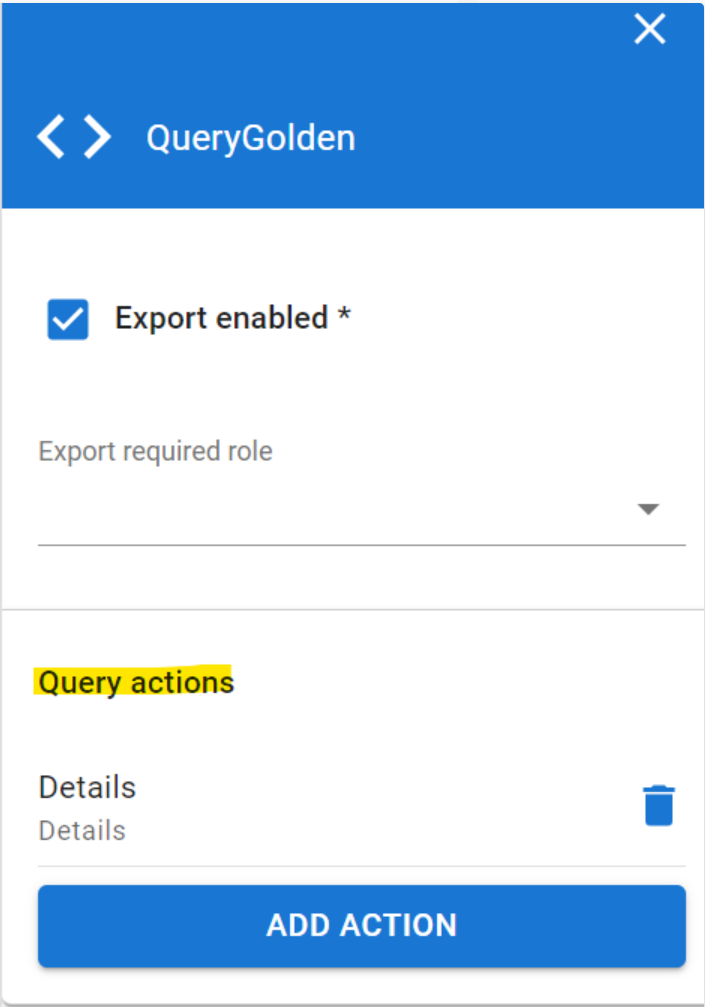
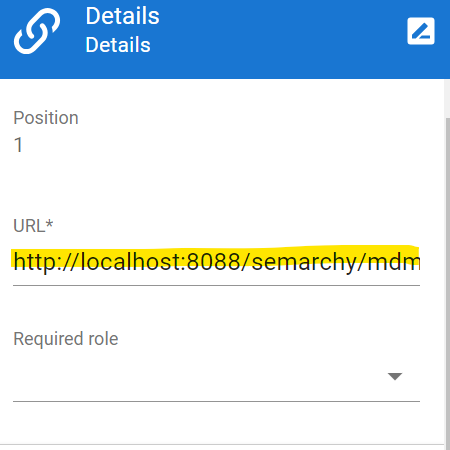
For more information about how to configure query actions, especially about how to set up a relative path for more reliability, you can check this documentation.
Please keep in mind that the URL should be a valid URL to a business view defined in your application.4. Once the two queries are configured, create two charts using those queries. To do so, you can select the PivotTable type, and put the attribute you want to show in the column.
What to display in the charts is up to your business needs, but as it is a chart, it is important to notice that only measures can be displayed.
5. Create a dashboard, and set the two charts in it. You can customize the dashboard to your heart content, even add other charts for other needs in it as well.
6. Integrate the dashboard into the application. It is done in the application builder, in the Folder and Action panel, the set-up is similar to a Browse Business View action.