
Need
When opening a support ticket, planning an upgrade, validating compatibility, or reviewing documentation, you may need to know exactly which version of Semarchy xDM you are running.
Common scenarios include:
- Confirming whether a feature is available in your version.
- Checking if a known issue applies to your environment.
- Providing version details to Semarchy Support.
- Verifying repository or system configuration details.
To do so, you can retrieve the version number directly from the Application Builder interface.
Summarized Solution
To identify your xDM version:
- Open Application Builder.
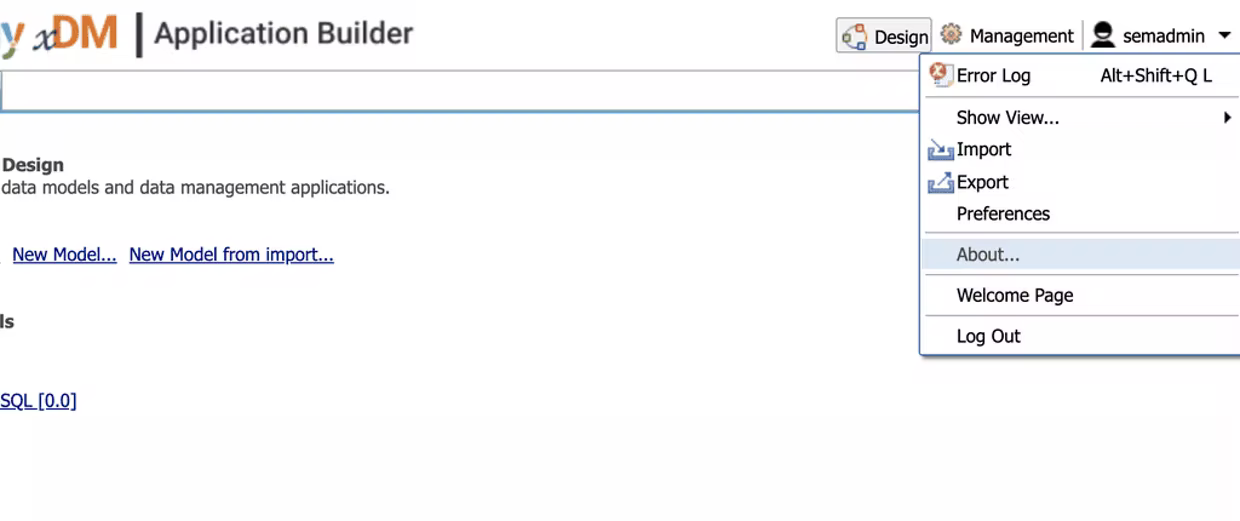
- Click your Profile icon in the upper-right corner.
- Select "About…"
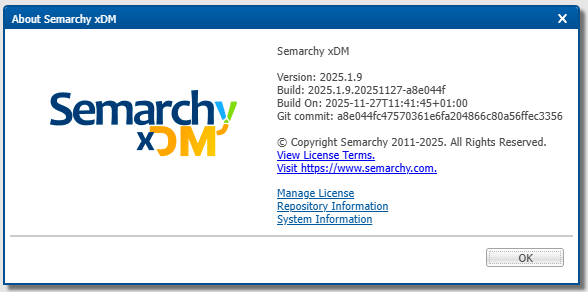
The version number is displayed in the dialog window.
For additional technical details (license, repository, system information), use the links available in the same area.
Detailed Solution
Step 1 - Open the application builder
Log in to your Semarchy xDM environment and access the application builder.
Step 2 - Access your profile menu
In the upper-right corner of the interface, click on your profile icon (user avatar).
Step 3 - Open the "About" dialog
From the dropdown menu, click "About…".
A dialog window will open displaying:
- The Semarchy xDM version number
- Build information (depending on version)
 This is the primary information required for most support and compatibility checks.
Step 4 - Access additional technical information
If more detailed information is required, you can click on the following links (available from the same profile menu or related sections):
- Manage License: provides license details and status.
- Repository Information: displays metadata about the repository configuration.
- System Information: provides system-level technical details (useful for troubleshooting).
These sections may be required when:
- Investigating environment configuration issues.
- Reviewing repository versions.
- Performing technical audits.
- Supporting upgrade planning.