
Issue
When starting Semarchy xDI Designer, the following message appears: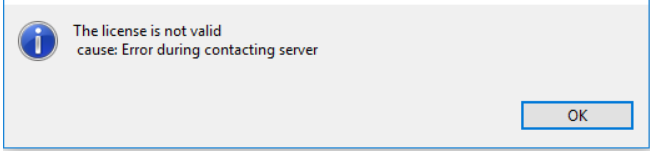
Error during contacting serverThe Designer cannot complete the license validation process and therefore fails to connect to the configured License Server.
Cause
This error typically occurs when the Designer cannot establish a secure connection to the License Server. Common causes include:
- Invalid License Server URL
- Proxy configuration issues
- Firewall or network restrictions
- SSL/TLS certificate validation failures
- Incorrect Java truststore configuration
- License Server unavailable or unreachable
Solution
- Verify the License Server URL:
- The URL must start with
https://. - Do not add leading or trailing spaces.
- Do not add an unnecessary trailing slash.
- For Semarchy-hosted license servers, ensure port
443is specified when required.
- The URL must start with
- Verify network connectivity:
- Open the License Server URL directly in a web browser.
- Confirm that the server is reachable.
- Check with your network team that outbound HTTPS traffic is allowed.
These two screenshots are normal :
your machine connects successfully with the License Server.
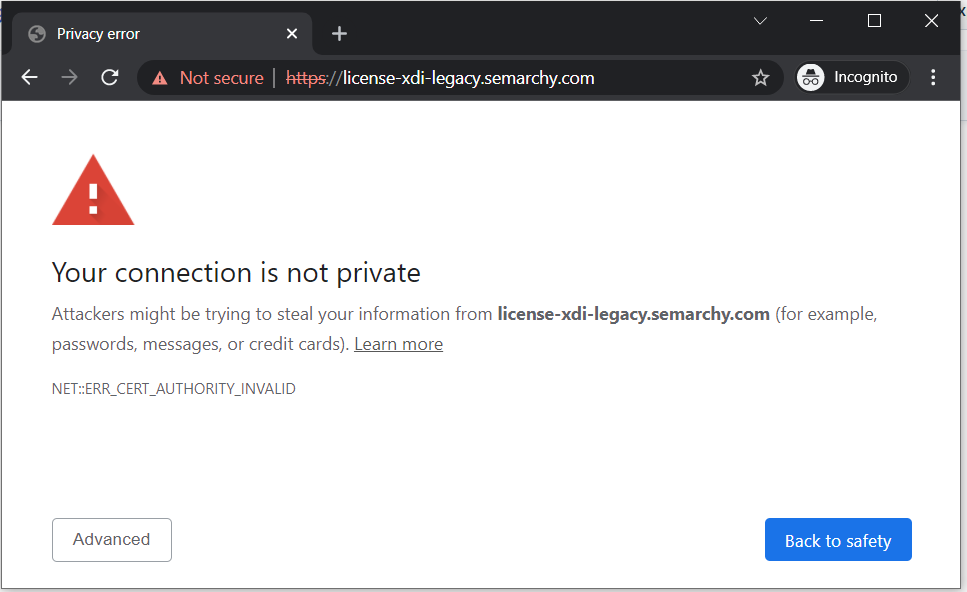
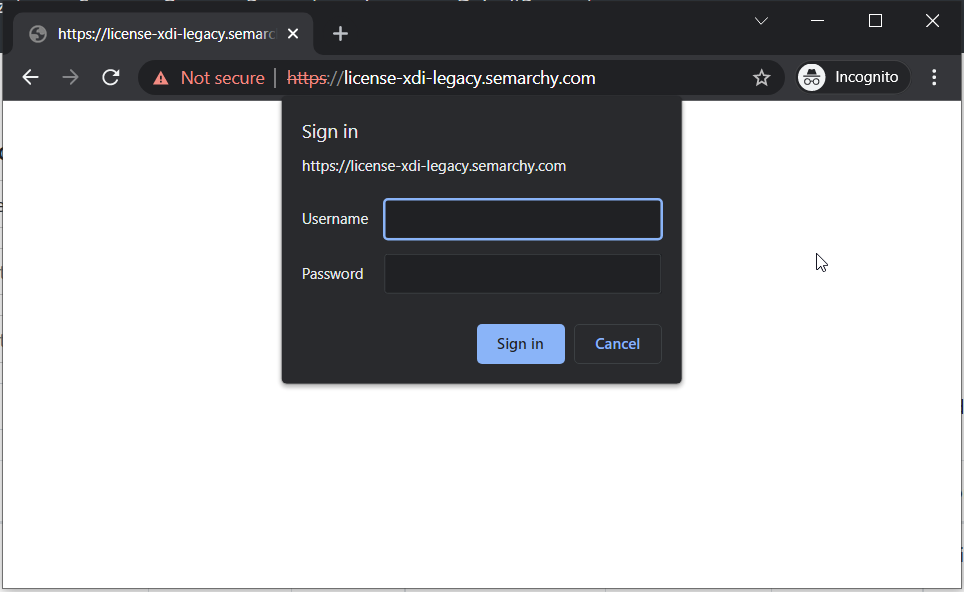 Review Designer proxy settings:
- Open the License dialog.
- Select Network Settings.
- Test the available providers:
- Native
- Direct
- Manual
- Use the configuration that matches your corporate network requirements.
- Validate SSL certificates:
- If the License Server uses a custom or internal certificate, import the certificate chain into the Java truststore used by xDI Designer.
- Restart the Designer after importing certificates.
- Enable Designer tracing for further diagnosis:
- Start the Designer with the
-consoleLogoption. - Review the workspace logs and console output for SSL, proxy, or connection-related errors.
- Start the Designer with the
Tip: Current Semarchy xDI releases require Java 17 (2024.x/2025.x) or the Java version documented for your target release. Verify the Java version used by the Designer from Help > About Semarchy xDI Designer > Installation Details > Configuration.
Information: If the License Server is reachable through a browser but the Designer still reports "Error during contacting server", the most common causes are proxy configuration or SSL certificate validation issues. Enable tracing and review the Designer logs for the underlying exception.